• Element Plus自定义命名空间

    使用Vue 3 + Element Plus开发新项目时,因为要引入的公共组件是Vue 2 + Element UI实现的。同一个项目中既有Element UI,又有Element Plus,会造成CSS冲突。

    官方给出的解决方案是给Element Plus修改命名空间,如:原来的都是el-开头,我们可以改成ep-开头。

    • 使用 ElConfigProvider 包装您的根组件
    <!-- App.vue -->
    <template>
      <el-config-provider namespace="ep">
        <!-- ... -->
      </el-config-provider>
    </template>
    
    • 在src目录下创建 styles/element/index.scss
    // styles/element/index.scss
    // we can add this to custom namespace, default is 'el'
    @forward 'element-plus/theme-chalk/src/mixins/config.scss' with (
      $namespace: 'ep'
    );
    // ...
    
    • vite.config.ts 中导入 styles/element/index.scss
    import { defineConfig } from 'vite'
    // https://vitejs.dev/config/
    export default defineConfig({
      // ...
      css: {
        preprocessorOptions: {
          scss: {
            additionalData: `@use "~/styles/element/index.scss" as *;`,
          },
        },
      },
      // ...
    })
    

    完全按照教程在全新的项目中试验会发现虽然类名都变成ep-开头了,但是element 源码中的类依然是el-

    原因:

    1. 官方教程中使用了~别名,如果你在vite / webpack中没有配置~别名,自定义命名空间就不会生效
    2. 如果是全部导入,需要在styles/element/index.scss中引入Element源码
    // we can add this to custom namespace, default is 'el'
    @forward "element-plus/theme-chalk/src/mixins/config.scss" with (
      $namespace: "ep"
    );
    
    @use "element-plus/theme-chalk/src/index.scss" as *;
    注意:如果是按需导入组件,需要使用ElementPlusResolver,具体配置参考官方模版
    
    import { ElementPlusResolver } from 'unplugin-vue-components/resolvers'
    
    Components({
          resolvers: [
            ElementPlusResolver({
              importStyle: 'sass',
            }),
          ]
    })
    

  • 在Vue模版中定义临时变量

    使用场景:需要在Vue中多次用到同一个表达式,表达式太长影响代码可读性且不方便放在data中

    可以使用void 表达式,不会影响DOM

    <template>
      <div>
        {{ void (value1 = 1, value2 = 2) }} // 不会渲染额外的 DOM 
      </div>
    </template>
    

    使用:set定义临时变量占位符,不能用在方法中

    <div id="app">
      <div
        v-for="id in users"
        :key="id"
        :set="user = getUser(id)"
      >
        {{ user.name }}: {{ user.age }} years old
      </div>
    </div>
    
    
    const app = new Vue({
      el: '#app',
      data: {
        users: [1, 2, 3, 4],
        usersData: {
          1: {name: 'Mohamed', age: 29},
          2: {name: 'Ahmed', age: 27},
          3: {name: 'Zizo', age: 32},
          4: {name: 'John', age: 13},
        }
      },
      methods: {
        getUser(id) {
          return this.usersData[id];
        },
      },
    });

    举个例子:后台返回表格的数据中有一个字段是数组,要求默认只展示前三个,超过三个支持展开收起。效果如下:

    代码如下:

    <el-table ref="table">
    <el-table-column label="文件名">
        <template slot-scope="scope">
            <div v-if="scope.row.fileLists && scope.row.fileLists.length">
                {{ void (length = scope.row.fileLists.length) }}
                <div
                    :style="
                        scope.row.isOverflow
                            ? { height: '69px', overflow: 'hidden' }
                            : { height: 'auto' }
                    "
                >
                    <p v-for="(item, index) in scope.row.fileLists" :key="item">
                        {{ item }}
                        <span v-if="index === length - 1">({{ length }})</span>
                    </p>
                </div>
                <el-button
                    v-if="length > 3"
                    type="text"
                    @click.prevent="scope.row.isOverflow = !scope.row.isOverflow; $refs.table.doLayout()"
                >
                    {{ scope.row.isOverflow ? '展开全部' : '收起' }}
                </el-button>
            </div>
            <p v-else>暂无文件</p>
        </template>
    </el-table-column>
    </el-table>

    参考链接:https://forum.vuejs.org/t/topic/30395/8,https://stackoverflow.com/questions/43999618/how-to-define-a-temporary-variable-in-vue-js-template


  • Aqara P3 切换连接米家或 Aqara App

    现状

    早些时候(不太记得了,可能 1 年前左右)购买的 Aqara P3 空调伴侣默认连接的是 Aqara App,新买的却是默认连接米家 App。如果启动的时候,没有注意听语音,在错误的 App 上连接了之后会有各种奇怪的问题。Aqara App 上可能会提示错误代码 1。

    解决方案

    回去翻说明书(其实我是先在 M1S 的商品详情页看到的),上有写到:

    所以应该先连续短按 10 次按钮,然后听到语音后的 10 秒内,再连续短按 2 次按钮,即可完成切换。

    已在 Aqara P3,固件版本 3.4.0_0004.0616 上验证通过。

    Aqara M1S 商品详情页 FAQ 关于切换 App 的描述:

    Aqara P3 商品详情页 FAQ 关于短按 10 次和长按 10 秒的区别的描述:


  • Lens 安装 kube-state-metrics 超时

    使用 Lens 安装 kube-state-metrics 时发现,镜像是从 k8s.gcr.io/kube-state-metrics/kube-state-metrics:v2.0.0 拉取的,国内的 TKE 集群拉取会超时。可以直接修改 Deployment 的镜像为:ccr.ccs.tencentyun.com/tkeimages/kube-state-metrics:v2.0.0。

    也可以从 k8s-gcrio.azureedge.net/kube-state-metrics/kube-state-metrics:v2.0.0 拉取。

    如果只有单节点而且不想修改 Deployment 的话,可以在对应机器上拉取国内镜像,然后使用对应运行时的镜像工具修改镜像 Tag。以 containerd 为例:

    crictl pull ccr.ccs.tencentyun.com/tkeimages/kube-state-metrics:v2.0.0
    ctr -n k8s.io image tag ccr.ccs.tencentyun.com/tkeimages/kube-state-metrics:v2.0.0 k8s.gcr.io/kube-state-metrics/kube-state-metrics:v2.0.0


  • 修改 Kubernetes 默认 StorageClass

    今天部署一个应用的时候卡在新建 PVC,看到报错:

    Internal error occurred: 2 default StorageClasses were found

    编辑那个现在是默认,但是实际上不需要是默认的 sc,把:

    storageclass.kubernetes.io/is-default-class

    注解改为 false,或直接删除。

    引用

    https://kubernetes.io/docs/tasks/administer-cluster/change-default-storage-class/


  • 增加 Kubernetes CoreDNS Hosts 以自定义解析结果

    编辑 kube-system 中的 coredns 这个 ConfigMap,可以:

    kubectl edit configmap coredns -n kube-system

    在 Corefile 的:

    .:53 {
      ... ...
    }

    添加:

    hosts {
      127.0.0.1 localhost
      fallthrough
    }

    如果需要对单个 Pod 级别生效,可以设置 hostAliases。见:

    https://kubernetes.io/docs/tasks/network/customize-hosts-file-for-pods/#adding-additional-entries-with-hostaliases

    引用

    https://stackoverflow.com/a/65283959
    https://coredns.io/plugins/hosts/

    我还发现了什么好玩的

    由于不知道 Corefile 语法高亮应该用啥,于是看到了:

    https://coredns.io/2017/07/23/corefile-explained/


  • 下载“来自设备制造商的 HEVC 视频扩展”

    在浏览器中访问:

    ms-windows-store://pdp/?ProductId=9n4wgh0z6vhq


  • 修改 WordPress Twenty Fifteen 主题页脚以增加备案号

    感觉 Twenty Fifteen(2015)这个主题挺简洁,甚合我意。不过发现这个主题页脚没有提供可视化的设置,于是乎只能在主题编辑器上面看看页脚的源码(footer.php)怎么写的:

    <?php
    /**
     * The template for displaying the footer
     *
     * Contains the closing of the "site-content" div and all content after.
     *
     * @package WordPress
     * @subpackage Twenty_Fifteen
     * @since Twenty Fifteen 1.0
     */
    ?>
    
    	</div><!-- .site-content -->
    
    	<footer id="colophon" class="site-footer">
    		<div class="site-info">
    			<?php
    				/**
    				 * Fires before the Twenty Fifteen footer text for footer customization.
    				 *
    				 * @since Twenty Fifteen 1.0
    				 */
    				do_action( 'twentyfifteen_credits' );
    			?>
    			<?php
    			if ( function_exists( 'the_privacy_policy_link' ) ) {
    				the_privacy_policy_link( '', '<span role="separator" aria-hidden="true"></span>' );
    			}
    			?>
    			<a href="<?php echo esc_url( __( 'https://wordpress.org/', 'twentyfifteen' ) ); ?>" class="imprint">
    				<?php
    				/* translators: %s: WordPress */
    				printf( __( 'Proudly powered by %s', 'twentyfifteen' ), 'WordPress' );
    				?>
    			</a>
    		</div><!-- .site-info -->
    	</footer><!-- .site-footer -->
    
    </div><!-- .site -->
    
    <?php wp_footer(); ?>
    
    </body>
    </html>
    

    注意到第 23 行这里提供了一个钩子可以注入代码,如果在子主题里使用这个方法注入的话,就不需要修改原主题页脚的代码,这样的话代码量小,后期升级兼容性也更好。

    那么就新建一个子主题,在 functions.php 这里加载:

    add_action( 'twentyfifteen_credits', 'custom_footer_provider' );
    function custom_footer_provider() {
    	printf( '<a class="imprint" href="%s" target="_blank">%s</a>', 'https://beian.miit.gov.cn/', '粤ICP备XXX号-X' );
    }

    此时页脚已经可以显示备案号了,不过和原有的“自豪地采用WordPress”文字挤在一起,不太好看。注意到这两个元素其实是在一个 <div class="site-info"></div> 里的,那么只需要在 style.css 里面设置一下 flex 布局:

    .site-info {
    	display: flex;
    	justify-content: space-between;
    }

    此时两个文字已经贴靠两边显示了。


  • append vs appendChild

    append和appendChild都用于在DOM中添加新的元素,区别如下:

    1. append传参可以为DOMString和Node节点,appendChild传参只能为Node节点
    // 1. append传Node节点
    const parent = document.createElement('div');
    const child = document.createElement('p');
    parent.append(child);
    
    // 2. append传文本,被插入的 DOMString对象等价为 Text 节点
    const parent = document.createElement('div');
    parent.append('Appending Text');
    
    // 3. appendChild传Node节点
    const parent = document.createElement('div');
    const child = document.createElement('p');
    parent.appendChild(child);
    
    // 4. 报错:appendChild传文本
    const parent = document.createElement('div');
    parent.appendChild('Appending Text');
    appendChild不支持传字符串

    2. append没有返回值,appendChild返回被创建的Node节点

    const parent = document.createElement('div');
    const child = document.createElement('p');
    const appendValue = parent.append(child);
    console.log(appendValue) // undefined
    
    const appendChildValue = parent.appendChild(child);
    console.log(appendChildValue) // <p><p>
    

    3. append可以同时添加多个元素,appendChild同时只能添加一个

    const parent = document.createElement('div');
    const child = document.createElement('p');
    const childTwo = document.createElement('p');
    parent.append(child, childTwo, 'Hello world'); // Works fine
    
    parent.appendChild(child, childTwo, 'Hello world');
    // Works fine, but adds the first element and ignores the rest
    

    4. 浏览器兼容区别,appendChild在各浏览器中兼容性较好

    其他:DOMString是一个UTF-16字符串。由于JavaScript已经使用了这样的字符串,所以DOMString 直接映射到 一个String


  • Navigator Clipboard 复制不生效

    使用 navigator.clipboard.writeText 完成复制功能的实现时,在本地测试没有问题,部署后报错navigator.clipboard Cannot read property ‘writeText‘ of undefined

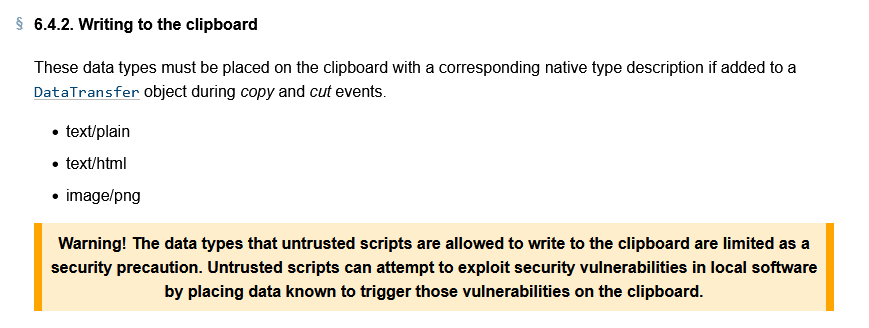
    原因:Navigator API 的安全策略禁用了非安全域的 navigator.clipboard 对象,API 仅支持通过 HTTPS 提供的页面。为帮助防止滥用,仅当页面是活动选项卡时才允许访问剪贴板。活动选项卡中的页面无需请求许可即可写入剪贴板,但从剪贴板读取始终需要许可。

    https://w3c.github.io/clipboard-apis/#dom-navigator-clipboard

    解决:判断当前环境是否支持navigator clipboard API,不允许则使用 document.execCommand('copy')进行剪贴板交互。
    使用兼容方案原因:navigator clipboard API是异步API,而使用document.execCommand('copy')进行剪贴板访问是同步的,只能读写 DOM,效率低下且在各浏览器之间还可能存在不同,在支持navigator clipboard API的情况下应尽量避免使用document.execCommand('copy')

    传入DOM ID

    export function copyCurrentTarget(text, id = '') {
        if (navigator.clipboard && window.isSecureContext) {
            navigator.clipboard.writeText(text)
        } else {
            window.getSelection().removeAllRanges()
            const questionToCopy = document.querySelector('#' + id)
            const range = document.createRange()
            range.selectNode(questionToCopy)
            window.getSelection().addRange(range)
            try {
                const successful = document.execCommand('copy')
                if (successful) {
                    console.log('复制成功')
                } 
            } catch (error) {
                console.error(error)
            }
        }
    }
    

    视口外创建一个新的DOM,传入要复制的内容

    function copyToClipboard(textToCopy) {
        if (navigator.clipboard && window.isSecureContext) {
            return navigator.clipboard.writeText(textToCopy)
        } else {
            let textArea = document.createElement("textarea")
            textArea.value = textToCopy
            textArea.style.position = "fixed"
            textArea.style.left = "-999999px"
            textArea.style.top = "-999999px"
            document.body.appendChild(textArea)
            textArea.focus()
            textArea.select()
            return new Promise((res, rej) => {
                document.execCommand('copy') ? res() : rej()
                textArea.remove()
            })
        }
    }
    

    扩展:安全和权限

    复制和粘贴权限已添加到 Permissions API 中。当页面处于活动标签页时,会自动授予 clipboard-write 权限。 clipboard-read 权限必须手动请求。如果尚未授予权限,尝试读取或写入剪贴板数据的操作会自动提示用户授予权限。

    const queryOpts = { name: 'clipboard-read', allowWithoutGesture: false };
    const permissionStatus = await navigator.permissions.query(queryOpts);
    // 'granted', 'denied' or 'prompt':
    console.log(permissionStatus.state);
    
    permissionStatus.onchange = () => {
      console.log(permissionStatus.state);
    };

    因为 Chrome 仅在页面是活动选项卡时才允许剪贴板访问,某些示例如果直接粘贴到 DevTools 中将无法运行,因为 DevTools 本身就是活动选项卡。有一个技巧:使用 setTimeout() 延迟剪贴板访问,然后在调用函数之前快速点击页面内部以将其聚焦:

    setTimeout(async () => {
    const text = await navigator.clipboard.readText();
    console.log(text);
    }, 2000);

    要在 iframe 中使用 API,需要使用权限策略启用它

    <iframe
        src="index.html"
        allow="clipboard-read; clipboard-write"
    >
    </iframe>

    参考:https://stackoverflow.com/questions/51805395/navigator-clipboard-is-undefined、https://developer.chrome.com/blog/cut-and-copy-commands/、https://web.dev/async-clipboard/